
Interactive Brokers - Import
Step 1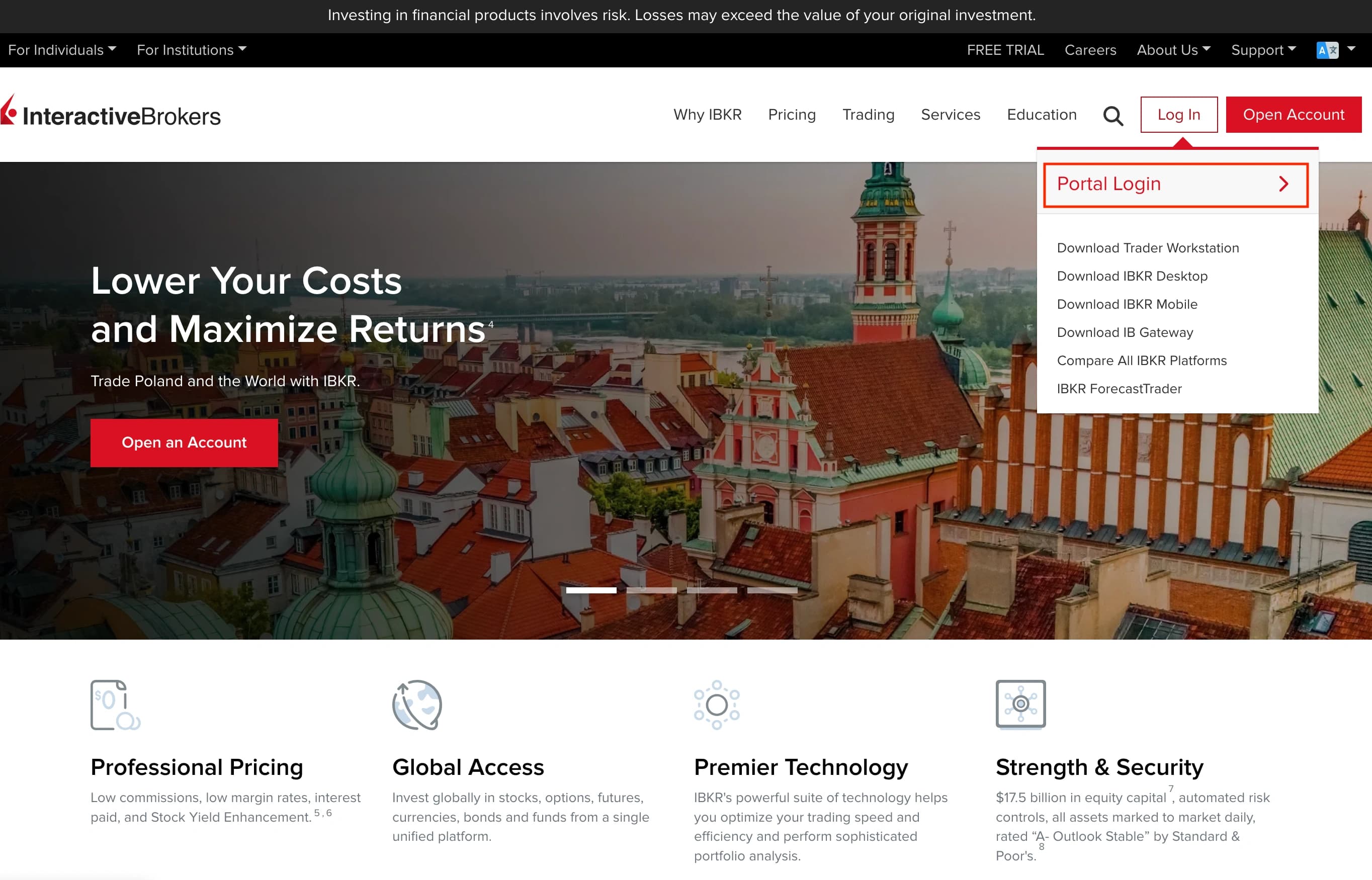
IB Login
Visit the Interactive Brokers website and log in to the web application using your credentials.
Open IB LoginStep 2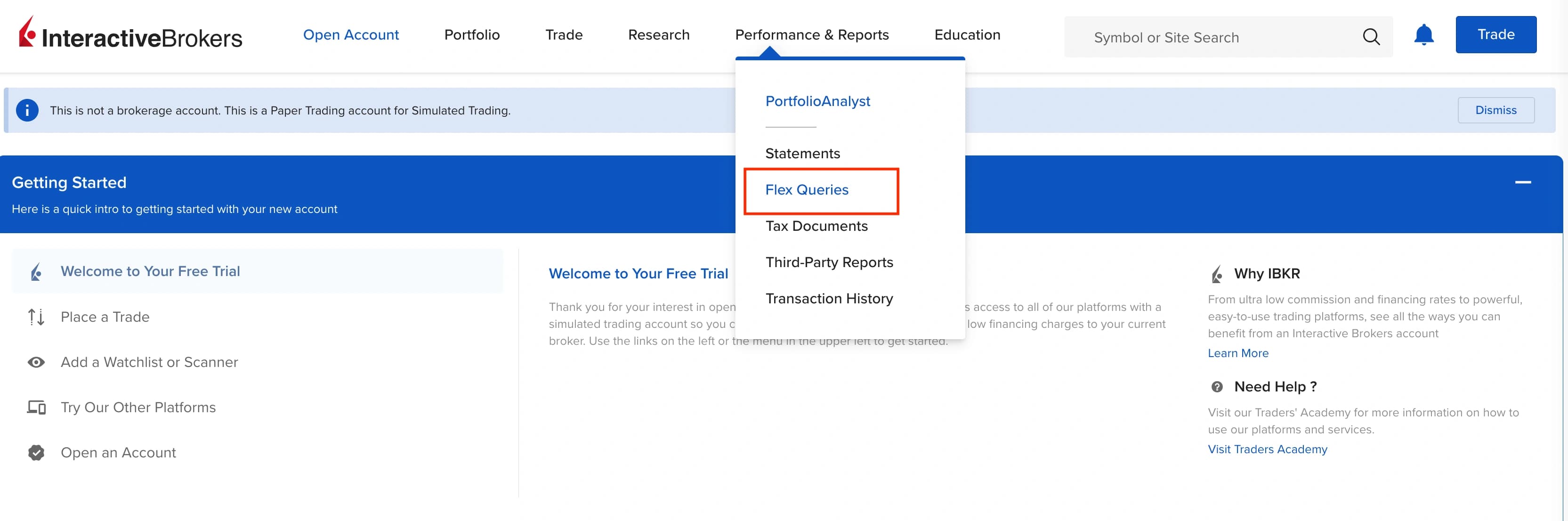
Flex Queries
Find the Performance & Reports section in your account dashboard and select Flex Queries.
Step 3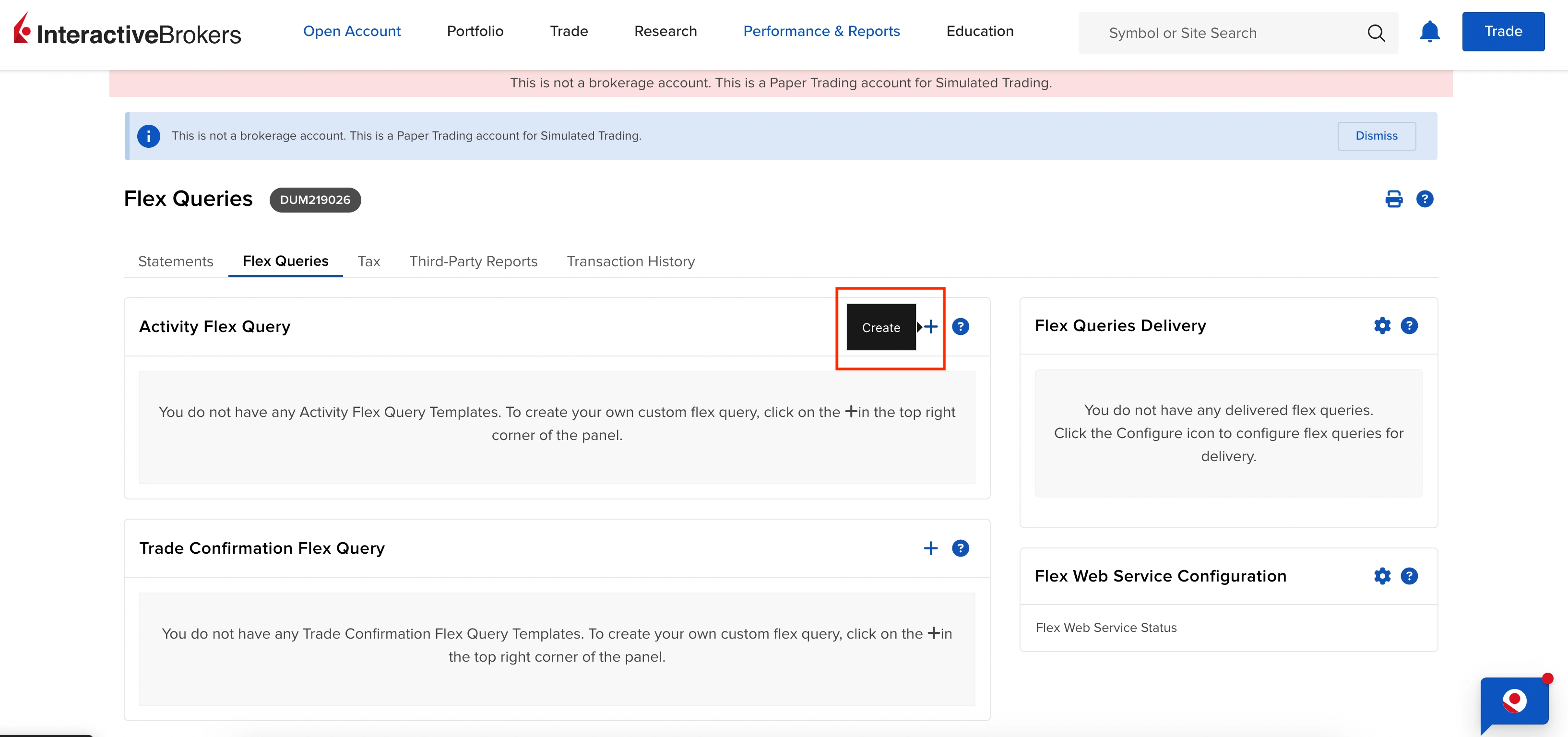
Create Query
Click 'Create' on Activity Flex Query. Note that this configuration process is only needed once - afterwards you'll just run the prepared queries.
Step 4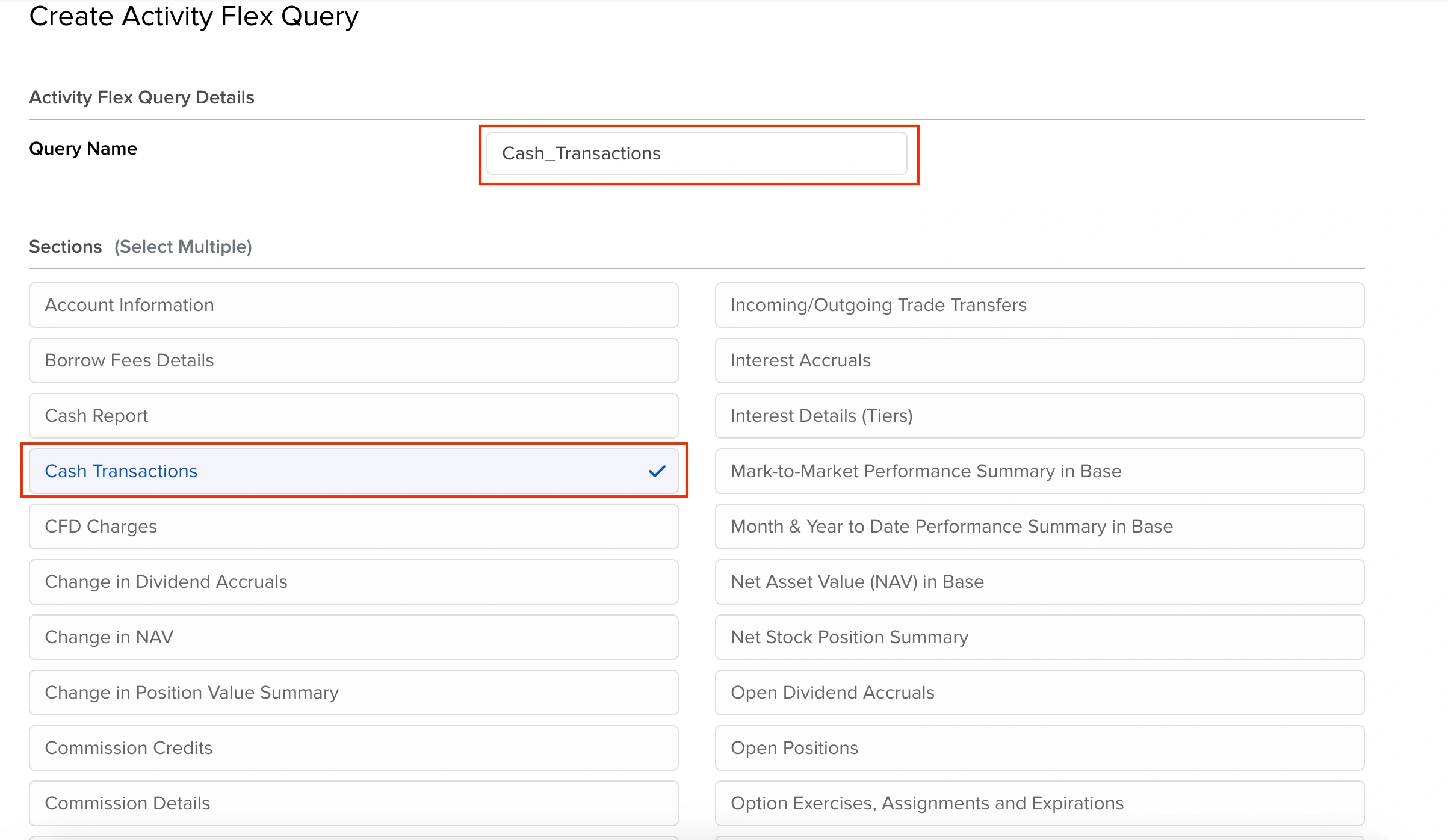
Cash Section
Select 'Cash Transaction' from the available sections to create your first query for cash transactions.
Step 5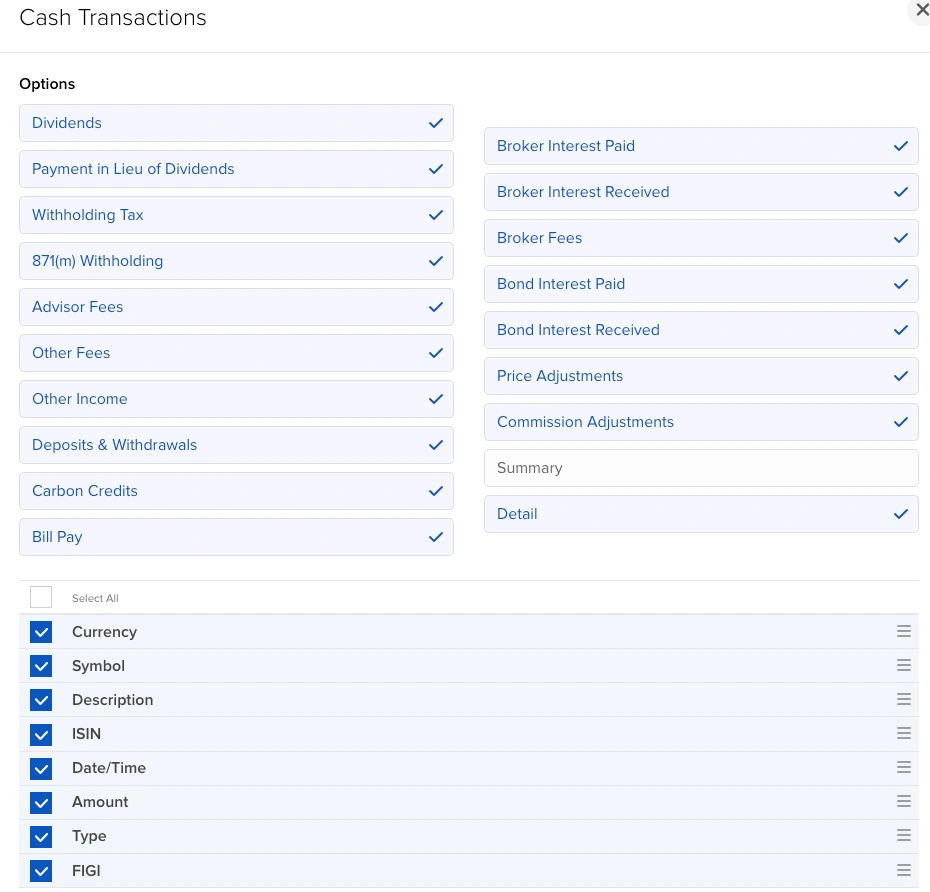
Cash Fields
Leave default options selected and pick these specific fields: Currency, Symbol, Description, ISIN, Date/Time, Amount, Type, FIGI.
Step 6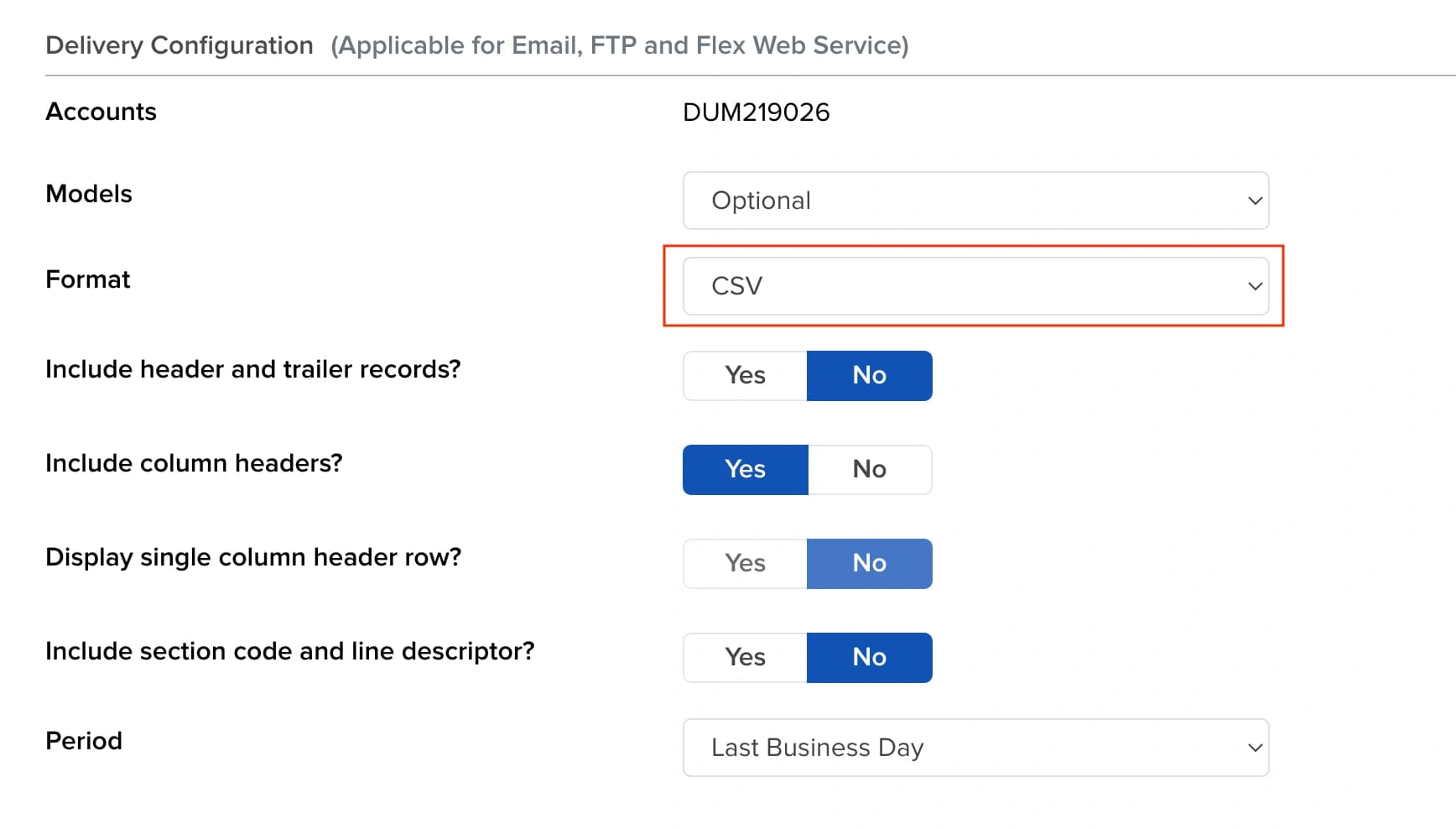
CSV Delivery
Scroll down to the delivery configuration section and change the format to CSV.
Step 7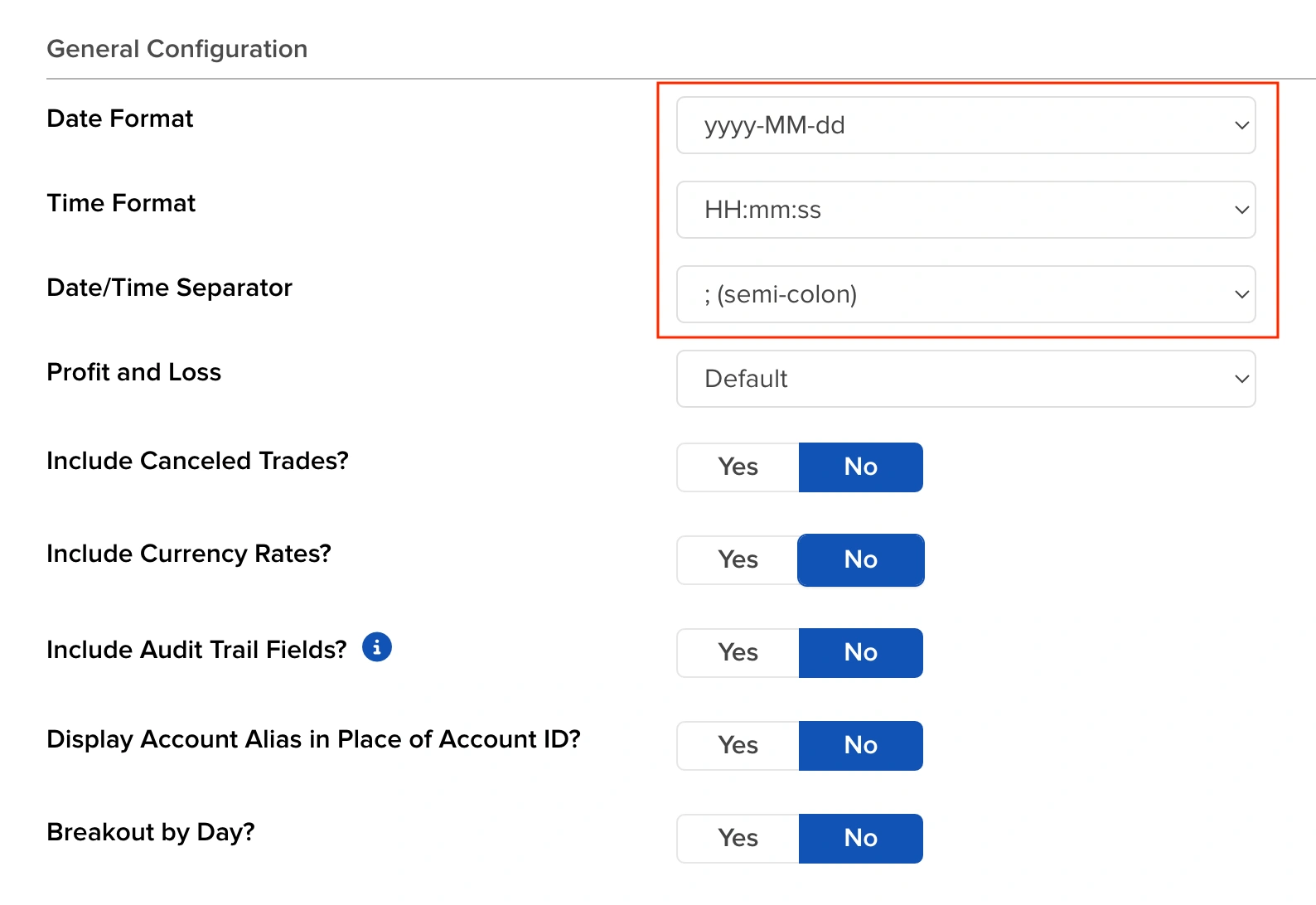
General Settings
Scroll down to General Configuration and set the correct date format, time format, and separator. Save this query when complete.
Step 8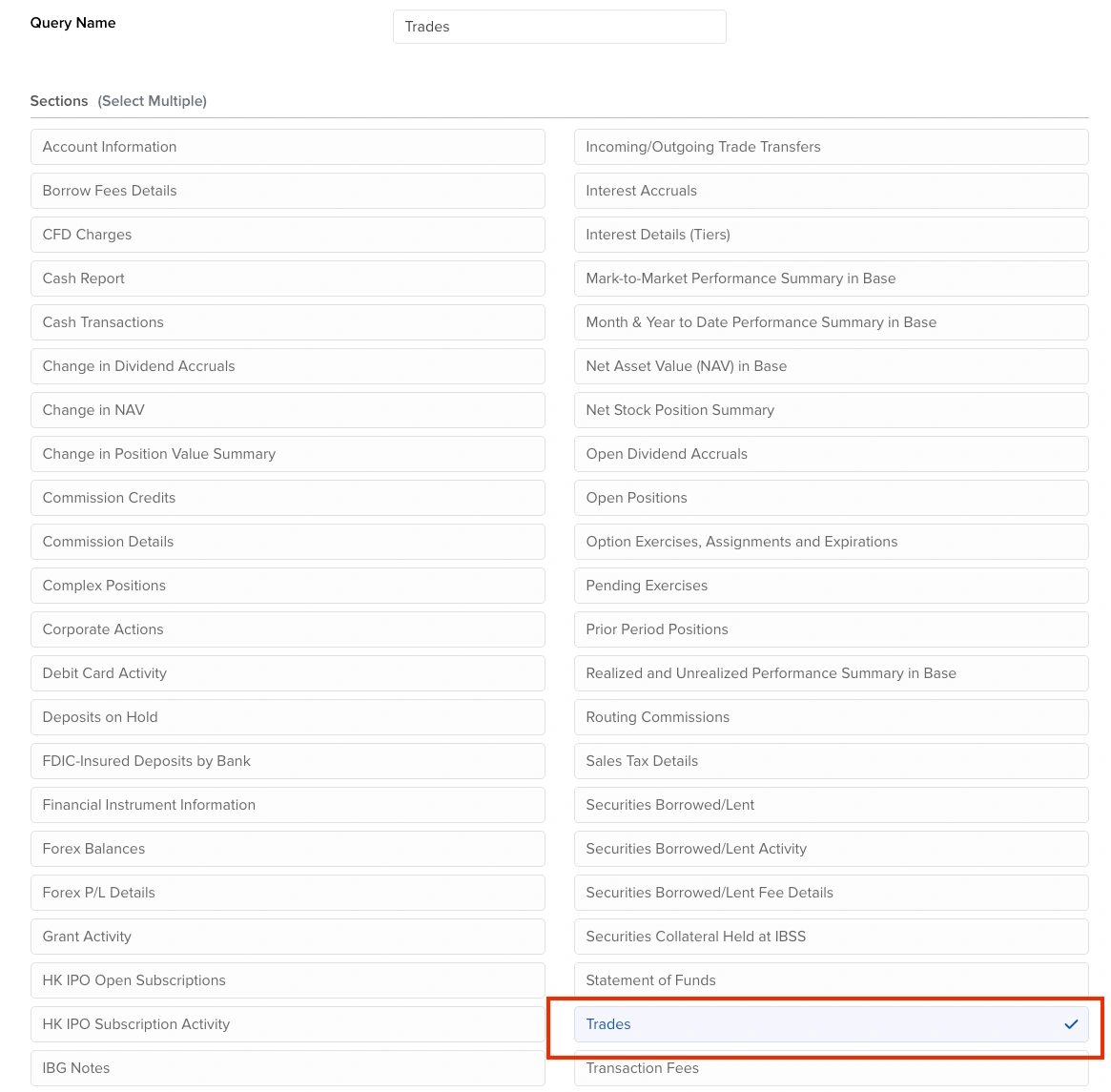
Trades Query
Repeat the last steps but this time choose 'Trades'
Step 9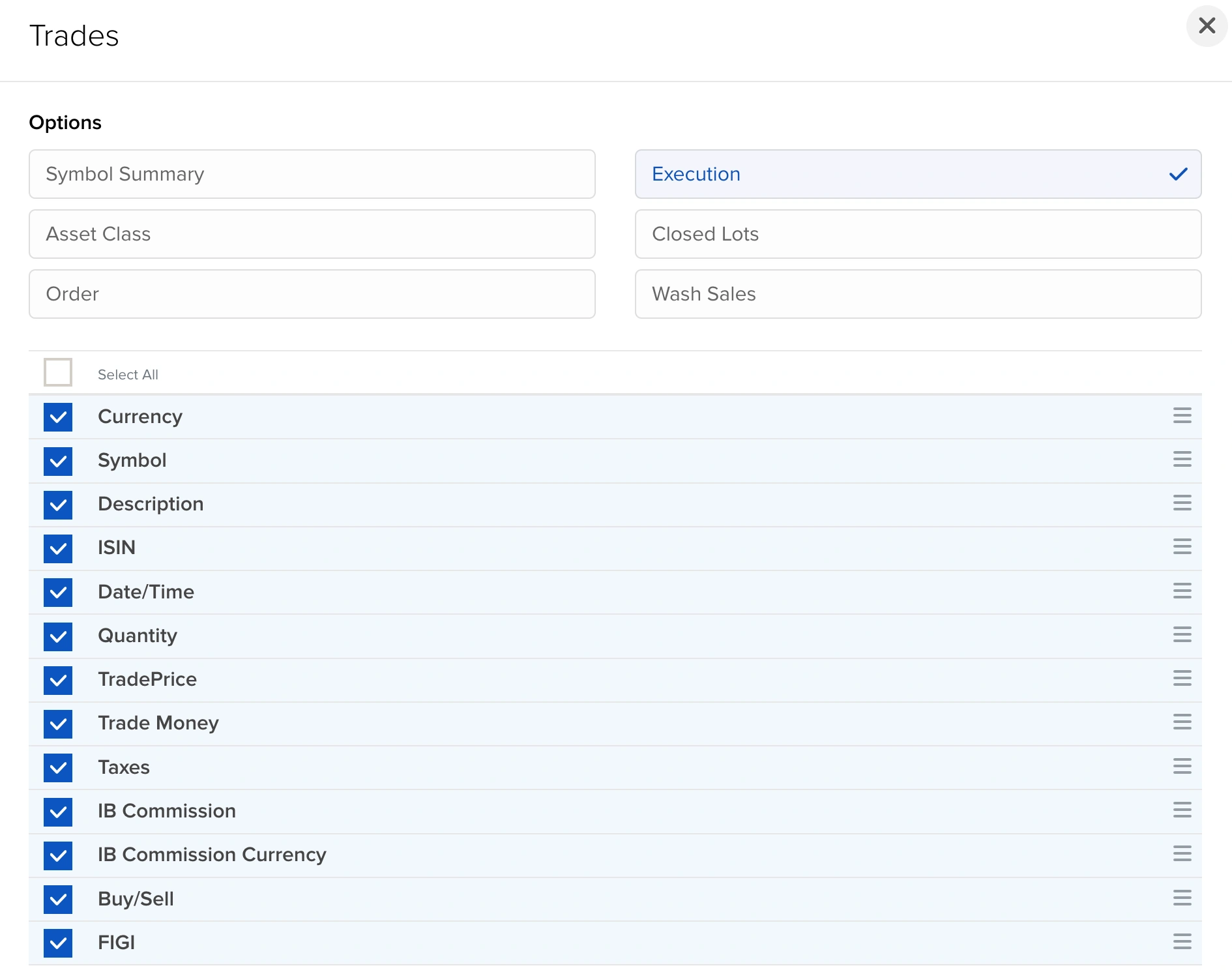
Trades Fields
Select these fields: Currency, Symbol, Description, ISIN, Date/Time, Quantity, TradePrice, Trade Money, Taxes, IB Commission, IB Commission Currency, Buy/Sell, FIGI.
Step 10
Trades CSV
Use the same delivery configuration (CSV format) as the previous Cash Transactions query.
Step 11
Trades Settings
Use the same general configuration (date format, time format, separator) as the previous Cash Transactions query. Save this query.
Step 12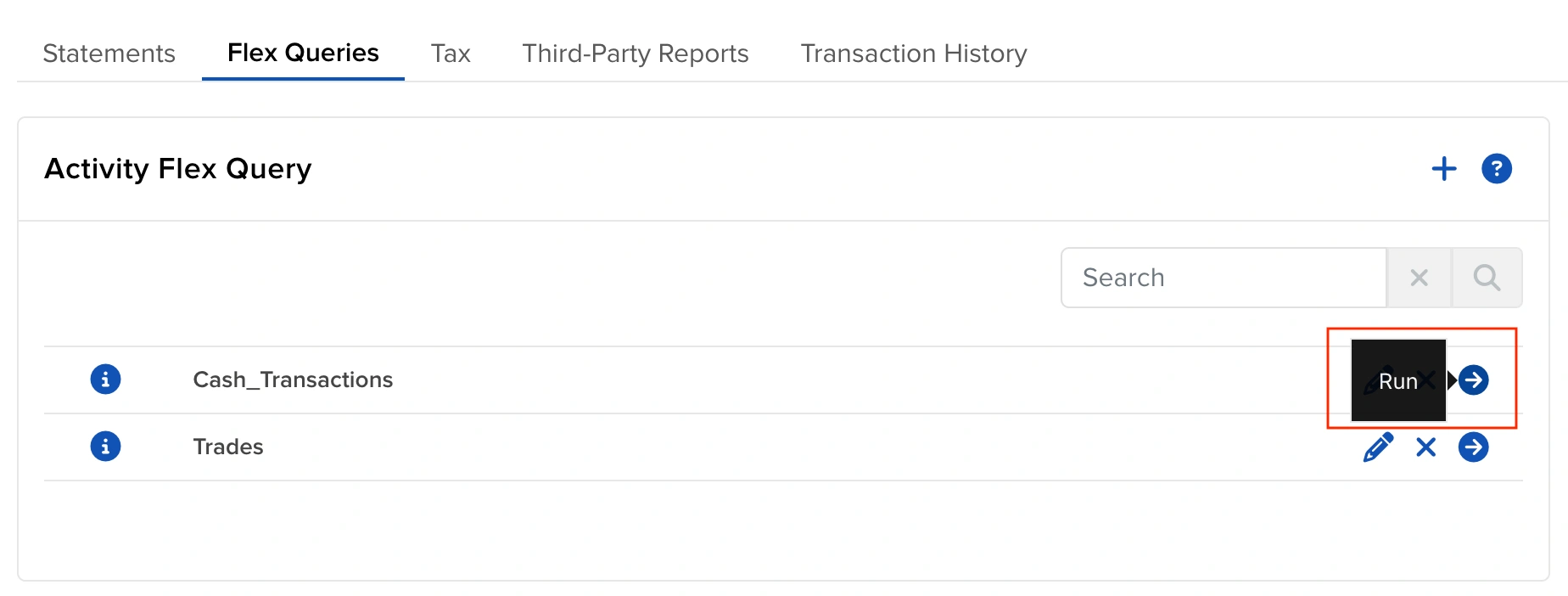
Run Reports
Run both the Cash Transactions and Trades reports.
Step 13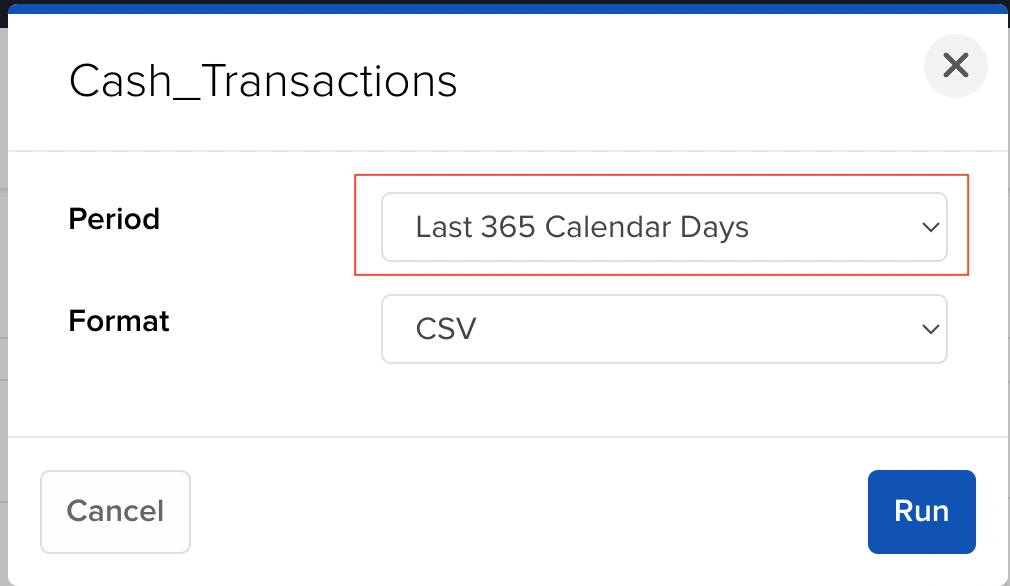
Export CSV
Run both the Cash Transactions and Trades reports for your specified date range. IBKR allows a maximum report interval of one year. If your transaction history is longer, export separate CSV files in one-year date ranges and import each file to load the complete transaction history. The system will generate the CSV files for download.
Step 14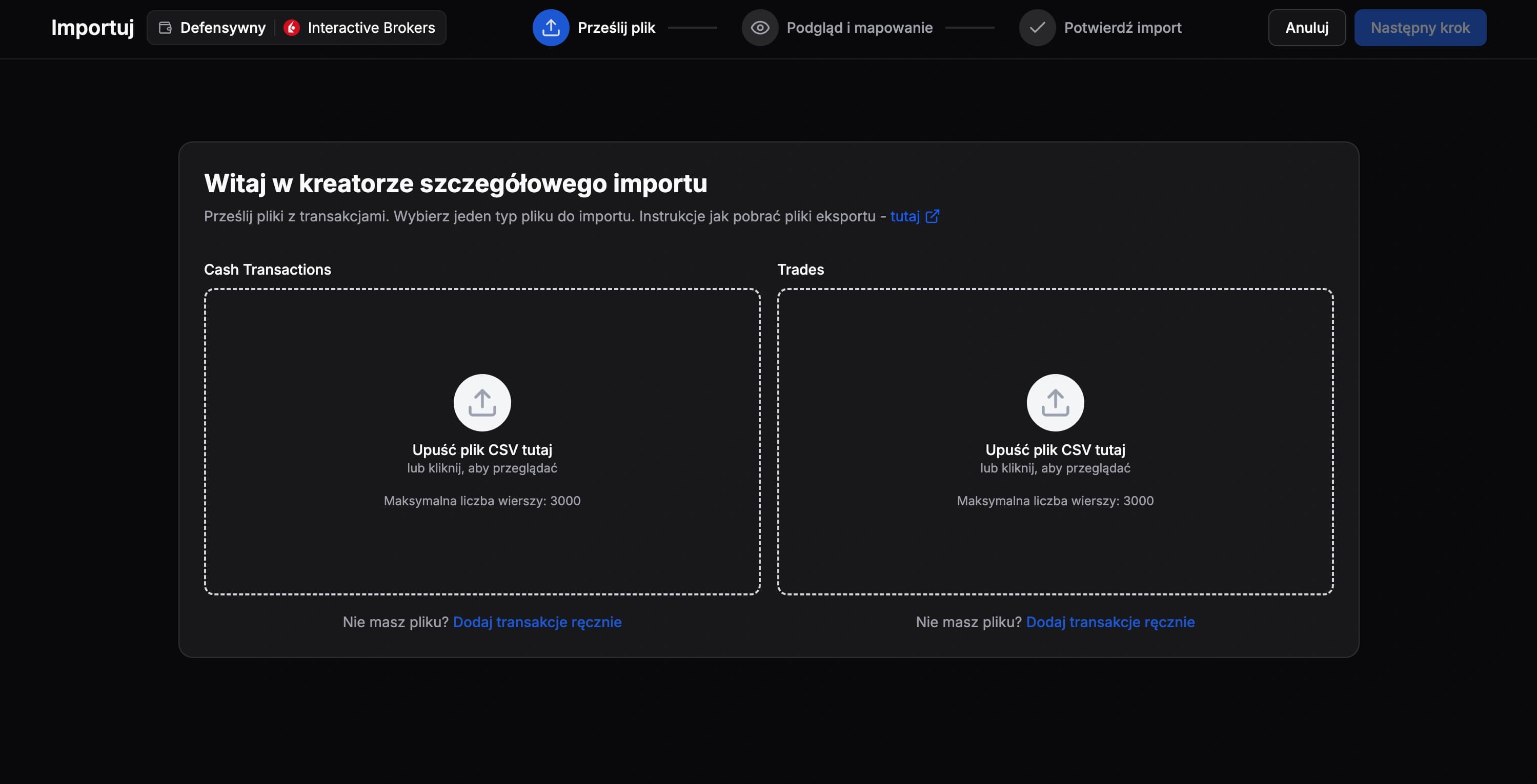
Import Files
The generated CSV files can now be imported directly into FundStat. Import one file first, finish that import, and then repeat the process for the second file. Once configured, you no longer need to set up these queries again - simply run them whenever you need updated trades or cash transactions from your broker.
Need Help?
Our Discord server is FundStat’s main support channel, including help with individual cases. It’s usually the fastest way to get a reply.
Join FundStat on Discord
You can also email us at contact@fundstat.pl.