
MyFund - Migration
Exchange rates are estimated
The MyFund export does not provide the actual exchange rate used for transactions that require currency conversion. FundStat therefore uses the latest available closing rate before the transaction date. This is an informed estimate, not the exact settlement rate. If you require full accuracy, review and adjust these transactions manually after import.
Step 1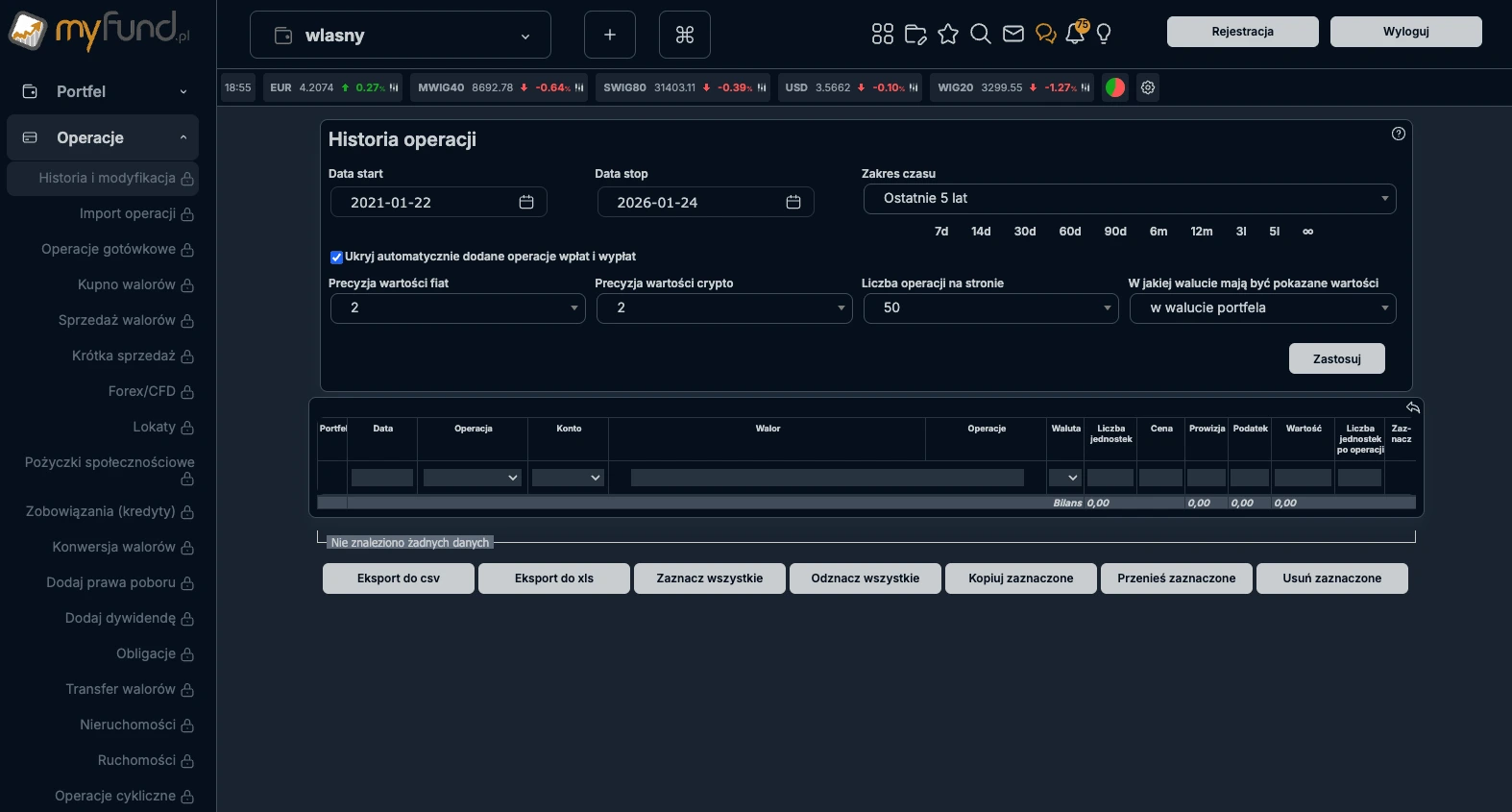
MyFund Login
Select the appropriate wallet and date range and export the data to CSV. Make sure to export data from Operations History.
Step 2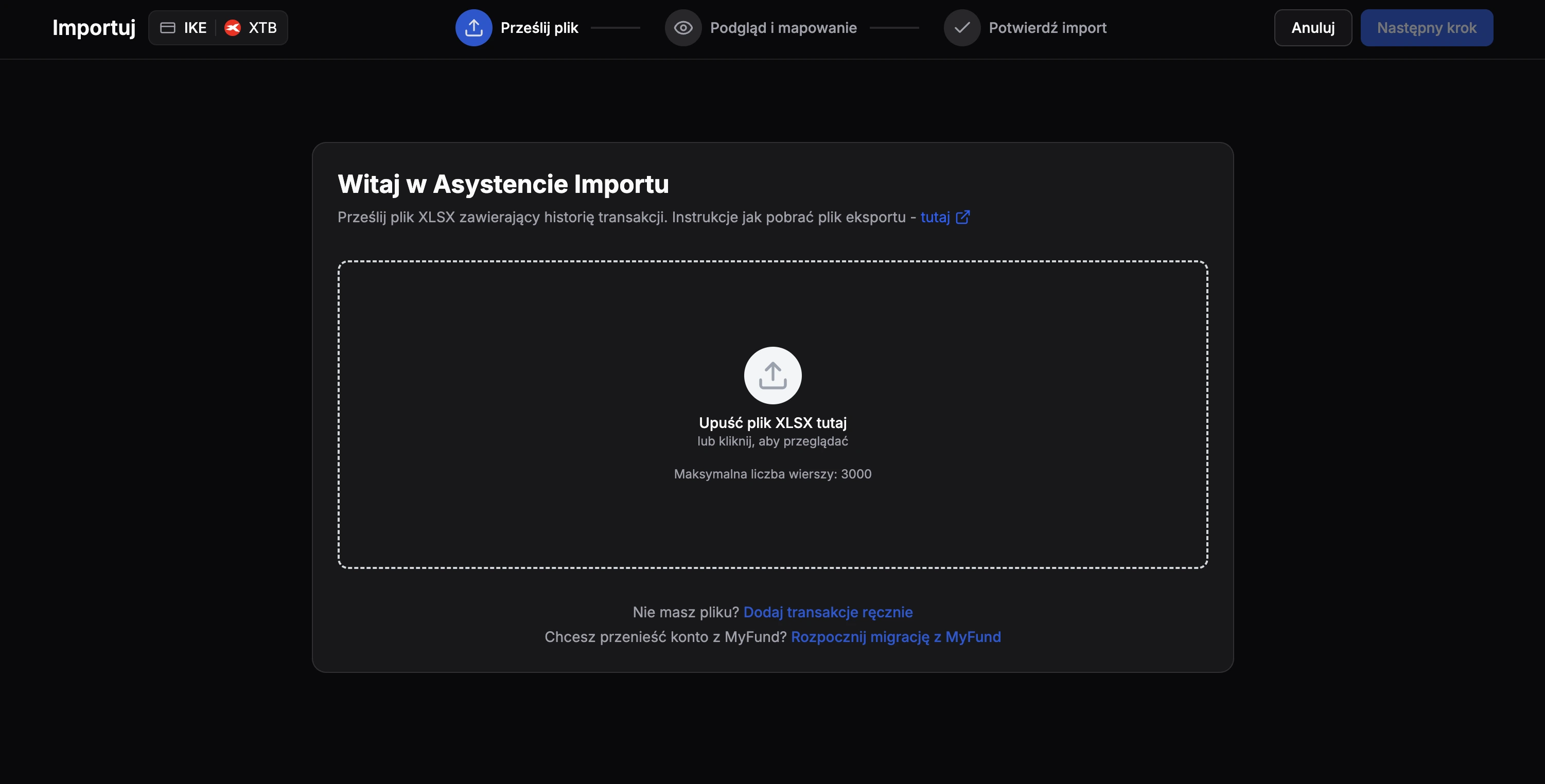
Select Account
Firstly select the desired account that the migrated transactions should be added to, then select Start migration from MyFund.
Step 3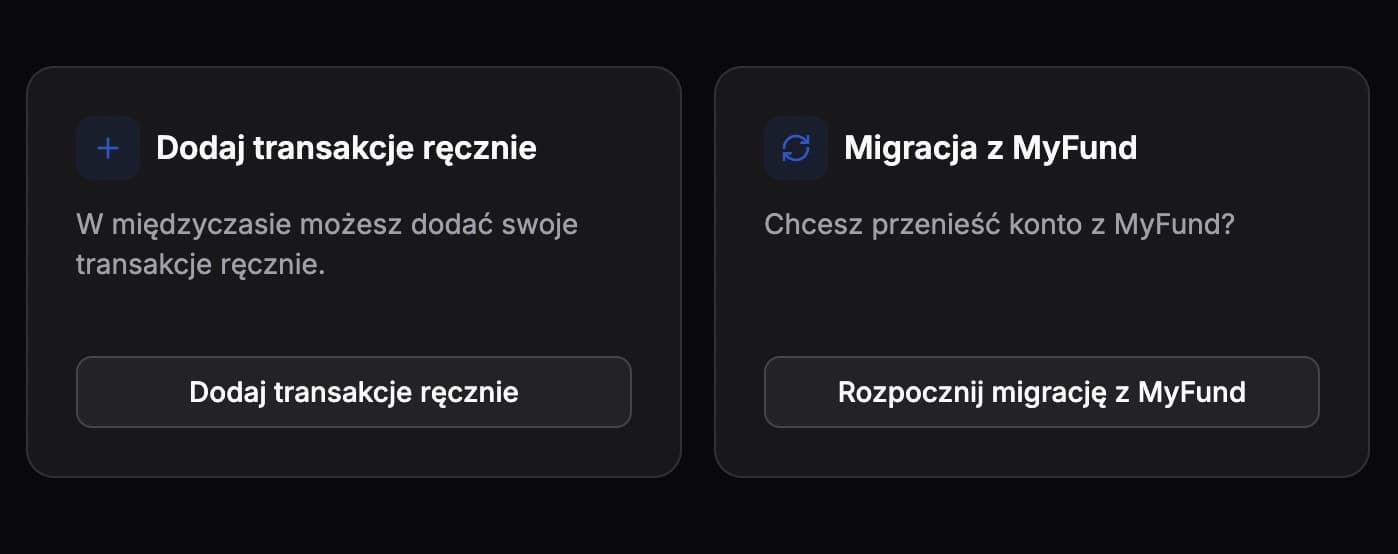
Missing Broker
If your broker is missing auto import support, this window will look different. In that view, select Start migration from MyFund.
Step 4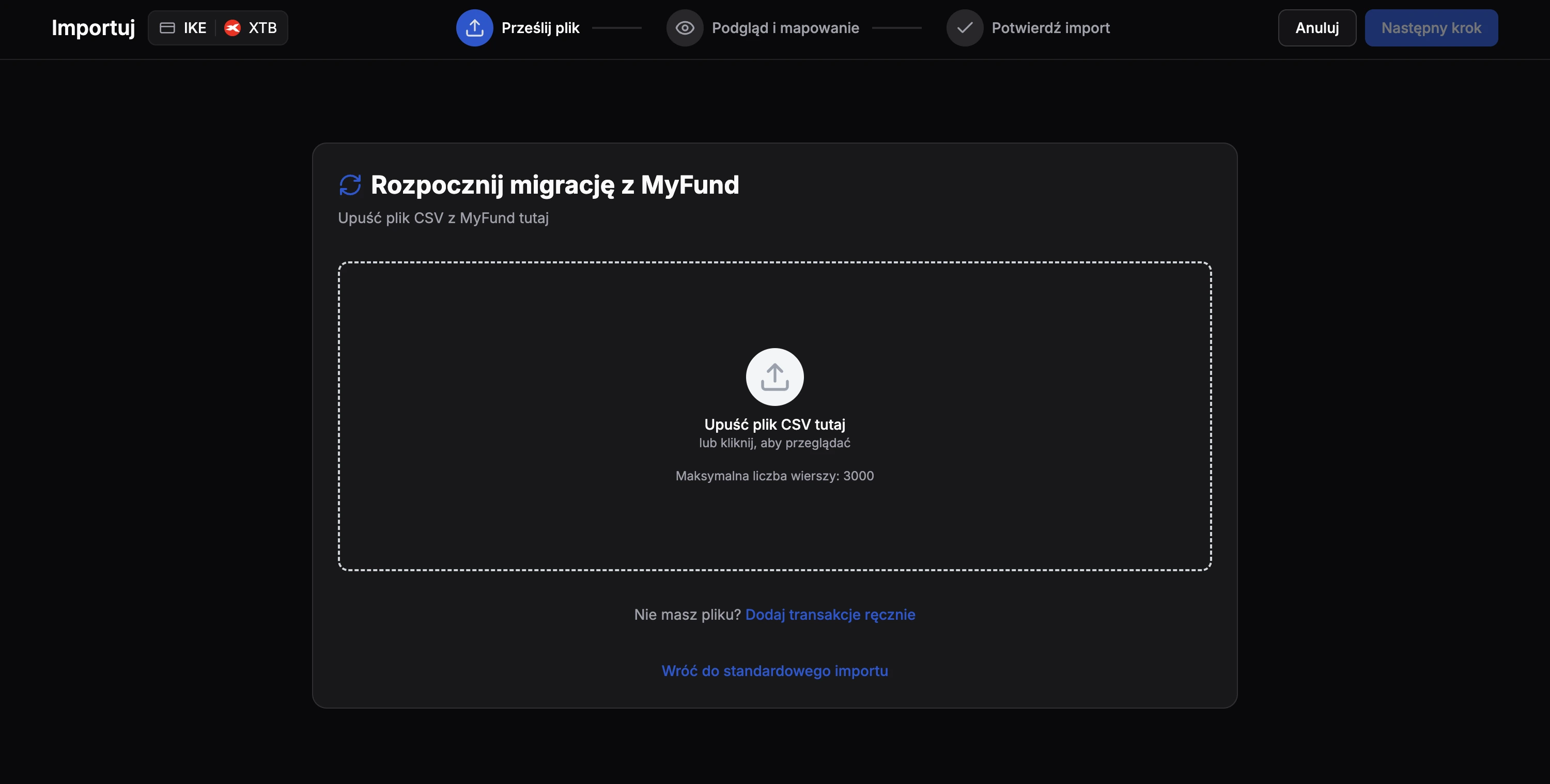
Upload File
After switching to MyFund migration mode, drop the exported file here and follow the import assistant flow to load migrated transactions into the selected account.
Important Migration Notes
Upcoming dividends from MyFund
MyFund exports may include upcoming dividends that appear as Unknown transactions during import. You can ignore them for now. FundStat does not require these entries, and upcoming dividends will soon be added based on market data.
Cash-wallet balance is required for accurate migration
Wallets that support MyFund migration are cash wallets by design, so they require a correct cash balance. Make sure deposits and other cash movements are included during import. If cash movements are missing, MWR will not be calculated correctly and account value may appear only as loss or gain. When migrating from a cashless MyFund wallet, review deposits and possible withdrawals in the Import Assistant.
Need Help?
Our Discord server is FundStat’s main support channel, including help with individual cases. It’s usually the fastest way to get a reply.
Join FundStat on Discord
You can also email us at contact@fundstat.pl.